# How to play
## NumPlay
| Key | What it does |
| --- | --- |
| **Left / Right** (or 4 / 6) | Pick a game |
| **OK** or **EXE** (or 5) | Play |
| **Back** | Leave a game's main menu to come back here. On the carousel, quit NumPlay |
| **⌫** (backspace) | A moving background behind the carousel: Aurora, Sunset Drive, Plasma, Pastel, Lava Lamp, Ocean, then none again. NumPlay remembers it |
| **Home** | Quit, from anywhere |
The last card, **Settings**, can:
- **Reset** a game's progress, or every game's at once: hold **OK** on the red button to confirm (levels you made are kept)
- **Uninstall** the games you don't play, to free up space
- **Start as Matrices**: NumPlay opens as a plain matrix calculator. Your secret way in opens the games: pick the x,n,t key, var, Toolbox, π, √, *Examples* in the Toolbox menu, or the Konami code (up, up, down, down, left, right, left, right). A small gray hint in the corner names it (turn it off with **Show a hint**)
Your progress is also copied into a Python script, `numplay_saves.py`, so updating NumPlay doesn't erase it. Leave it there; if it gets deleted, NumPlay writes it again.
In every game, **Back** pauses, and the pause menu has a small **Quit game** button. It always asks first, since Back sits right next to OK.
## NumDash
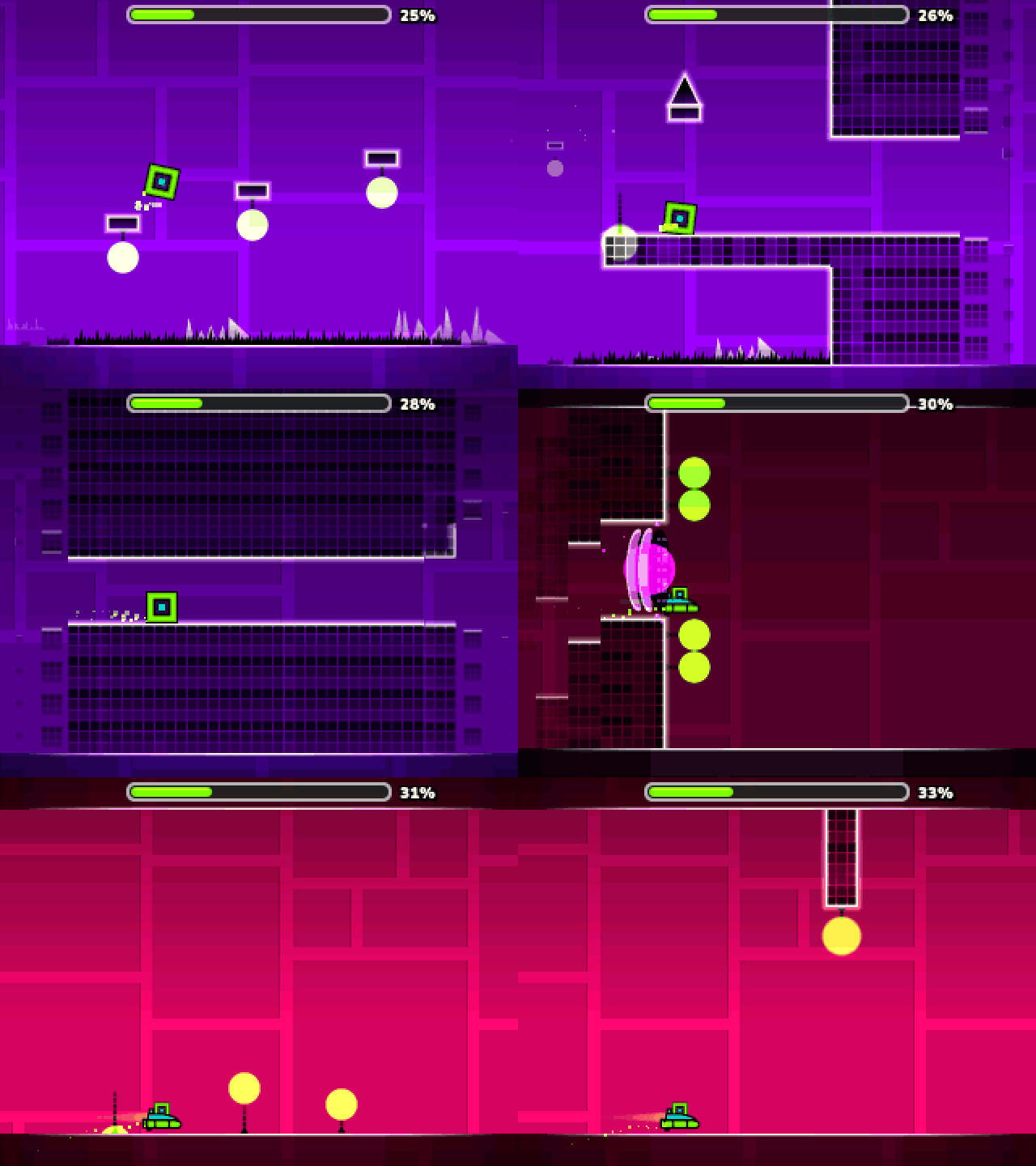 | Key | What it does |
| --- | --- |
| **OK**, **EXE** or **Up** | Jump. Hold to keep jumping, fly the ship up, or flip the ball's gravity |
| **Back** | Pause, or go back in menus |
| **0** | Place a checkpoint (practice mode) |
| **⌫** | Remove your last checkpoint |
Twelve levels, from Stereo Madness to Clubstep, Deadlocked and Dash. The **?** button on the main menu shows every key. In the level editor, **KEYS** on the My Levels screen draws the keyboard with what each key does (it also shows the first time you open the editor).
| Key | What it does |
| --- | --- |
| **OK**, **EXE** or **Up** | Jump. Hold to keep jumping, fly the ship up, or flip the ball's gravity |
| **Back** | Pause, or go back in menus |
| **0** | Place a checkpoint (practice mode) |
| **⌫** | Remove your last checkpoint |
Twelve levels, from Stereo Madness to Clubstep, Deadlocked and Dash. The **?** button on the main menu shows every key. In the level editor, **KEYS** on the My Levels screen draws the keyboard with what each key does (it also shows the first time you open the editor).
## Crossy Road
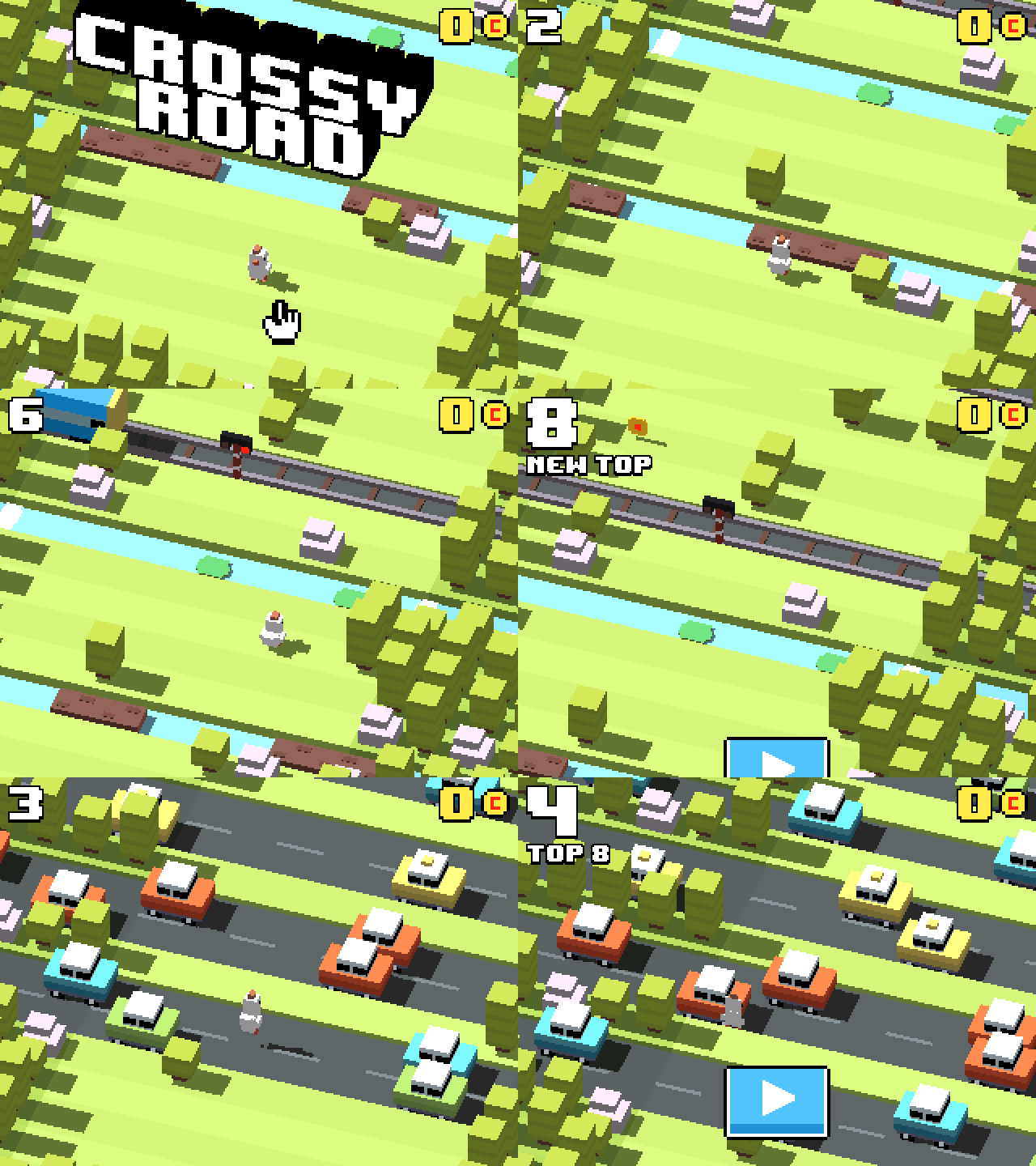 | Key | What it does |
| --- | --- |
| **Up**, **OK** or **EXE** | Hop forward |
| **Left / Right / Down** | Hop sideways or back |
| **Back** | Pause (then Quit game) |
Keep moving, or the eagle gets you. Coins add up across every run and stay saved.
| Key | What it does |
| --- | --- |
| **Up**, **OK** or **EXE** | Hop forward |
| **Left / Right / Down** | Hop sideways or back |
| **Back** | Pause (then Quit game) |
Keep moving, or the eagle gets you. Coins add up across every run and stay saved.
## NumBlocks
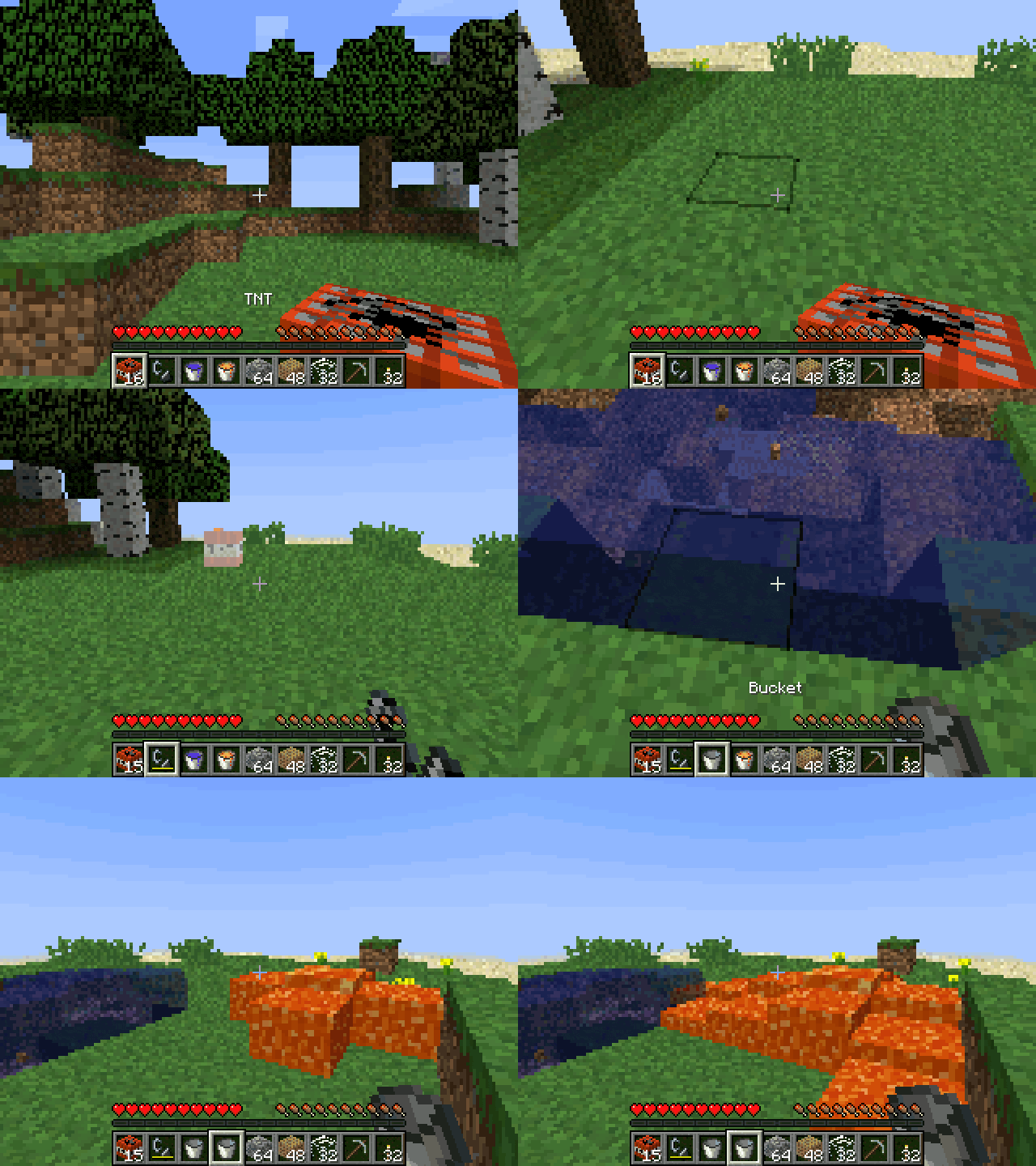 | Key | What it does |
| --- | --- |
| **Arrows** | Look around |
| **,** / **π** / **√** / **x²** | Walk forward / left / back / right (like W, A, S, D) |
| **shift** | Jump (twice in Creative: fly) |
| **alpha** | Sneak |
| **i** | Sprint |
| **OK** or **EXE** | Mine and attack, like the left mouse button (hold it to mine) |
| **Back** | Place a block, use, eat, like the right mouse button |
| **var** | Inventory (in Creative: every block and item) |
| **1** to **9** | Pick a hotbar slot |
| **x,n,t** | Drop the item |
| **log** | Pick the block you look at |
| **×** / **÷** | Chat / type a command |
| **ans** | Pause |
| **Home** | Save and quit |
The left thumb looks with the arrows (shift and alpha are just under them), the right one walks. The first time you open NumBlocks it shows these keys. You can change them in Options, then Controls, which also shows the key sheet again. In NumBlocks, Back places blocks, so **ans** pauses. In the inventory, the arrows move between slots, **OK** picks up or puts down a stack, **EXE** one item, and **shift** with **OK** sends a stack to the other side. To spread a stack, hold **OK** and move over the slots: it splits evenly when you let go (hold **EXE** instead to drop one in each). In Creative, the Search Items tab finds blocks as you type, and **shift** with up or down jumps to the top or bottom of a tab. Commands like /gamemode and /give work in worlds with Allow Cheats on (or after Open to LAN in the pause menu); **toolbox** finishes a word as you type it. Your world saves as you play and when you quit, and on its own NumBlocks keeps a copy in `numblocks_saves.py` (inside NumPlay, `numplay_saves.py` holds it), so installing again doesn't erase your worlds.
| Key | What it does |
| --- | --- |
| **Arrows** | Look around |
| **,** / **π** / **√** / **x²** | Walk forward / left / back / right (like W, A, S, D) |
| **shift** | Jump (twice in Creative: fly) |
| **alpha** | Sneak |
| **i** | Sprint |
| **OK** or **EXE** | Mine and attack, like the left mouse button (hold it to mine) |
| **Back** | Place a block, use, eat, like the right mouse button |
| **var** | Inventory (in Creative: every block and item) |
| **1** to **9** | Pick a hotbar slot |
| **x,n,t** | Drop the item |
| **log** | Pick the block you look at |
| **×** / **÷** | Chat / type a command |
| **ans** | Pause |
| **Home** | Save and quit |
The left thumb looks with the arrows (shift and alpha are just under them), the right one walks. The first time you open NumBlocks it shows these keys. You can change them in Options, then Controls, which also shows the key sheet again. In NumBlocks, Back places blocks, so **ans** pauses. In the inventory, the arrows move between slots, **OK** picks up or puts down a stack, **EXE** one item, and **shift** with **OK** sends a stack to the other side. To spread a stack, hold **OK** and move over the slots: it splits evenly when you let go (hold **EXE** instead to drop one in each). In Creative, the Search Items tab finds blocks as you type, and **shift** with up or down jumps to the top or bottom of a tab. Commands like /gamemode and /give work in worlds with Allow Cheats on (or after Open to LAN in the pause menu); **toolbox** finishes a word as you type it. Your world saves as you play and when you quit, and on its own NumBlocks keeps a copy in `numblocks_saves.py` (inside NumPlay, `numplay_saves.py` holds it), so installing again doesn't erase your worlds.
## Hollow Knight
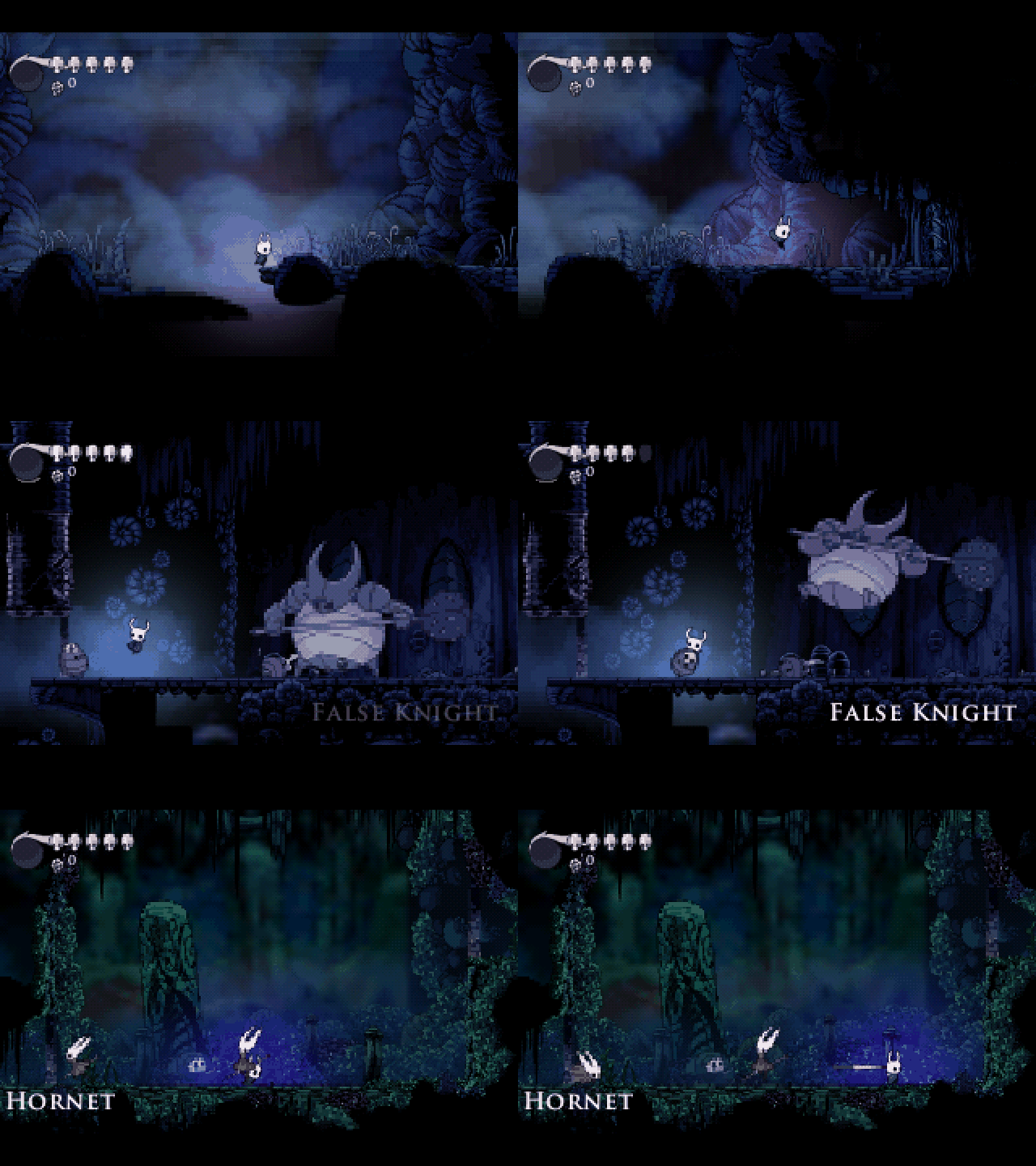 Hollow Knight comes as its own app, `HollowKnight.nwa`: it is too big to share the calculator with NumPlay.
| Key | What it does |
| --- | --- |
| **Arrows** | Move, look up and down, aim the nail up or down |
| **Up** | Talk, read, rest at a bench, go through a door |
| **OK** | Jump |
| **Back** | Nail |
| **shift** | Dash, once you have the Mothwing Cloak |
| **alpha** | Hold to focus and heal, tap to cast a spell |
| **var** | Hold for the quick map |
| **toolbox** | Inventory |
| **⌫** | Pause |
| **Home** | Save and quit |
Choose Start Game, then a save. Rest at benches to save and to change charms. In menus, **OK** or **EXE** confirms and **Back** goes back. In the inventory, left and right at the edges change pages; on the map page, **OK** places markers once you have them, and **shift** shows or hides the key and the pins. Home saves and quits, as Quit to Menu does. Your saves are also copied into `hollowknight_saves.py`, so installing the app again doesn't erase them.
Hollow Knight comes as its own app, `HollowKnight.nwa`: it is too big to share the calculator with NumPlay.
| Key | What it does |
| --- | --- |
| **Arrows** | Move, look up and down, aim the nail up or down |
| **Up** | Talk, read, rest at a bench, go through a door |
| **OK** | Jump |
| **Back** | Nail |
| **shift** | Dash, once you have the Mothwing Cloak |
| **alpha** | Hold to focus and heal, tap to cast a spell |
| **var** | Hold for the quick map |
| **toolbox** | Inventory |
| **⌫** | Pause |
| **Home** | Save and quit |
Choose Start Game, then a save. Rest at benches to save and to change charms. In menus, **OK** or **EXE** confirms and **Back** goes back. In the inventory, left and right at the edges change pages; on the map page, **OK** places markers once you have them, and **shift** shows or hides the key and the pins. Home saves and quits, as Quit to Menu does. Your saves are also copied into `hollowknight_saves.py`, so installing the app again doesn't erase them.
## Celeste
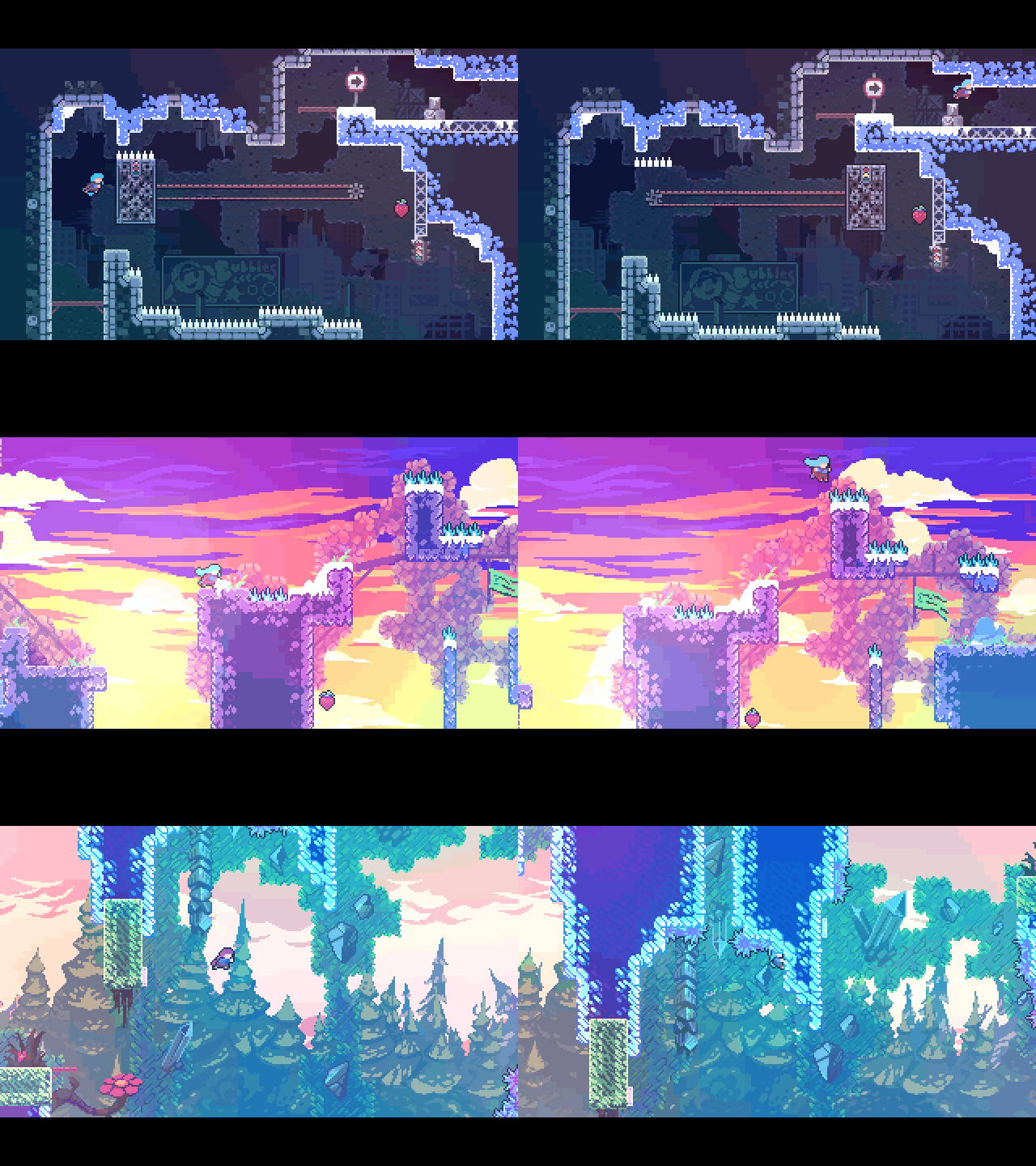 Celeste comes as its own app, `Celeste.nwa`: it is too big to share the calculator with NumPlay.
| Key | What it does |
| --- | --- |
| **Arrows** | Move, and aim the dash |
| **OK** | Jump |
| **Back** | Dash, and talk |
| **toolbox** | Grab, climb |
| **⌫** | Pause |
| **Home** | Save and quit |
Choose Climb, then a chapter, then Start. Madeline can dash once in the air (twice later on), and grab and climb walls until she gets tired. In menus, **OK** or **EXE** confirms and **Back** goes back. The first time you open Celeste it shows these keys; you can change them in Options, then Keyboard Config. Home saves and quits, and Climb then offers Continue. Your progress is also copied into `celeste_saves.py`, so installing the app again doesn't erase it. The game's cheat code works too: in the Prologue's hidden room, left of the start, press left, right, var, toolbox, up, up, down, left, toolbox and OK.
Celeste comes as its own app, `Celeste.nwa`: it is too big to share the calculator with NumPlay.
| Key | What it does |
| --- | --- |
| **Arrows** | Move, and aim the dash |
| **OK** | Jump |
| **Back** | Dash, and talk |
| **toolbox** | Grab, climb |
| **⌫** | Pause |
| **Home** | Save and quit |
Choose Climb, then a chapter, then Start. Madeline can dash once in the air (twice later on), and grab and climb walls until she gets tired. In menus, **OK** or **EXE** confirms and **Back** goes back. The first time you open Celeste it shows these keys; you can change them in Options, then Keyboard Config. Home saves and quits, and Climb then offers Continue. Your progress is also copied into `celeste_saves.py`, so installing the app again doesn't erase it. The game's cheat code works too: in the Prologue's hidden room, left of the start, press left, right, var, toolbox, up, up, down, left, toolbox and OK.
## NumPowder
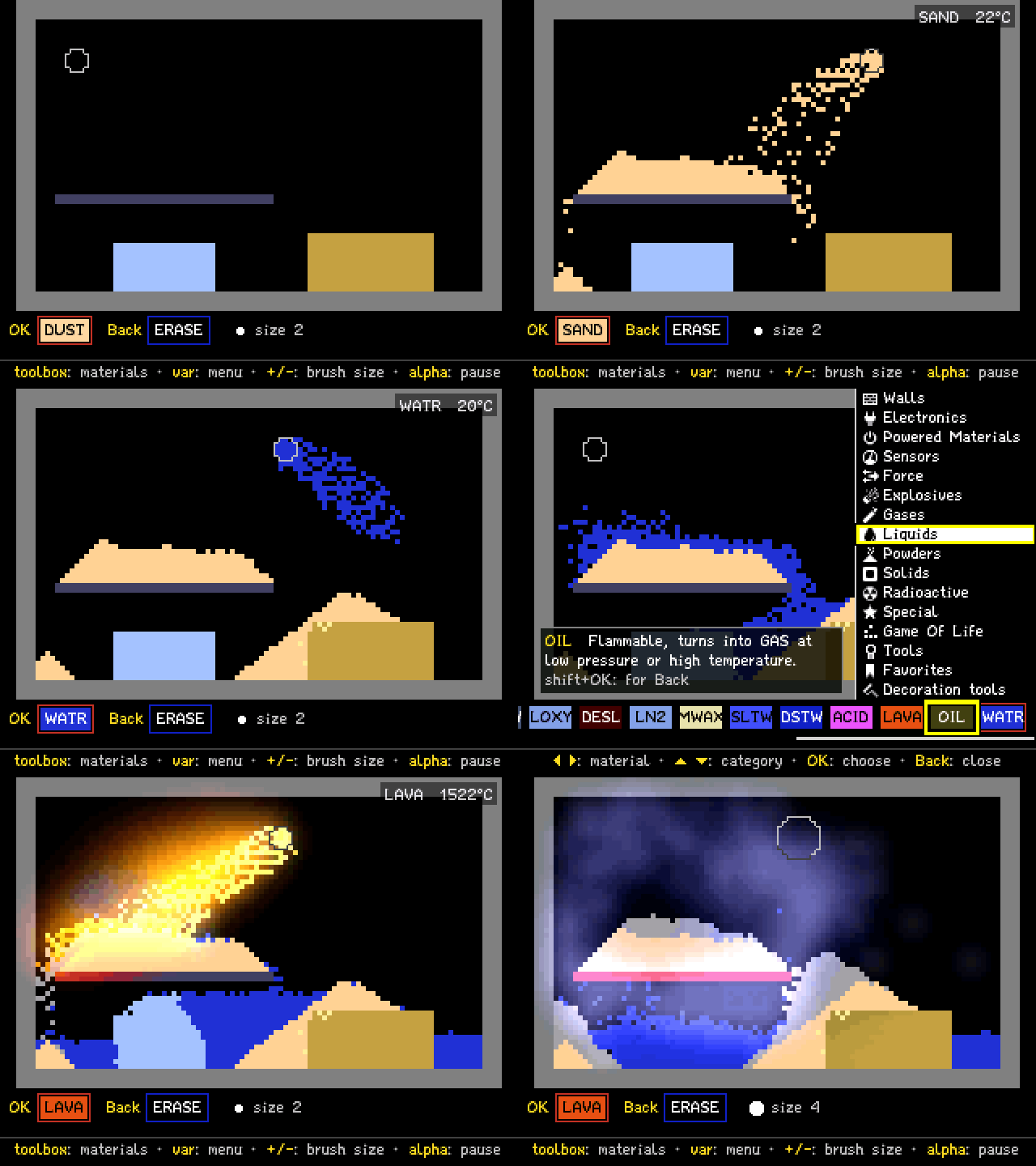 NumPowder comes as its own app, `NumPowder.nwa`: it is too big to share the calculator with NumPlay.
| Key | What it does |
| --- | --- |
| **Arrows** | Move the brush (**shift**: 4 at a time) |
| **OK** | Draw with the OK material |
| **Back** | Draw with the Back tool (ERASE at first) |
| **toolbox** | The materials: left and right pick, up and down change category, **OK** takes it, **shift**+**OK** for Back |
| **var** | The menu: How to play, keys, save, load, clear, display, settings, credits |
| **+** and **-** | The brush's size (**shift**: its shape) |
| **shift**+**OK** | Draw a line; **⌫** switches to a box or a fill |
| **⌫** | Take the material under the brush |
| **alpha** | Pause (**shift**+**alpha**: one frame) |
| **Home** | Save and quit |
Pick a material with **toolbox**, then hold **OK** to draw it. The bar at the bottom always shows what **OK** and **Back** draw with, and the line under it says what the keys do right now. Try sand on water, fire on wood, lava on ice, or draw metal (METL) and touch it with a spark (SPRK). How to play, in the **var** menu, has more ideas. Home saves, and four save slots keep more; they are also copied into `numpowder_saves.py`, so installing the app again doesn't erase them.
NumPowder comes as its own app, `NumPowder.nwa`: it is too big to share the calculator with NumPlay.
| Key | What it does |
| --- | --- |
| **Arrows** | Move the brush (**shift**: 4 at a time) |
| **OK** | Draw with the OK material |
| **Back** | Draw with the Back tool (ERASE at first) |
| **toolbox** | The materials: left and right pick, up and down change category, **OK** takes it, **shift**+**OK** for Back |
| **var** | The menu: How to play, keys, save, load, clear, display, settings, credits |
| **+** and **-** | The brush's size (**shift**: its shape) |
| **shift**+**OK** | Draw a line; **⌫** switches to a box or a fill |
| **⌫** | Take the material under the brush |
| **alpha** | Pause (**shift**+**alpha**: one frame) |
| **Home** | Save and quit |
Pick a material with **toolbox**, then hold **OK** to draw it. The bar at the bottom always shows what **OK** and **Back** draw with, and the line under it says what the keys do right now. Try sand on water, fire on wood, lava on ice, or draw metal (METL) and touch it with a spark (SPRK). How to play, in the **var** menu, has more ideas. Home saves, and four save slots keep more; they are also copied into `numpowder_saves.py`, so installing the app again doesn't erase them.
## The Final Earth 2
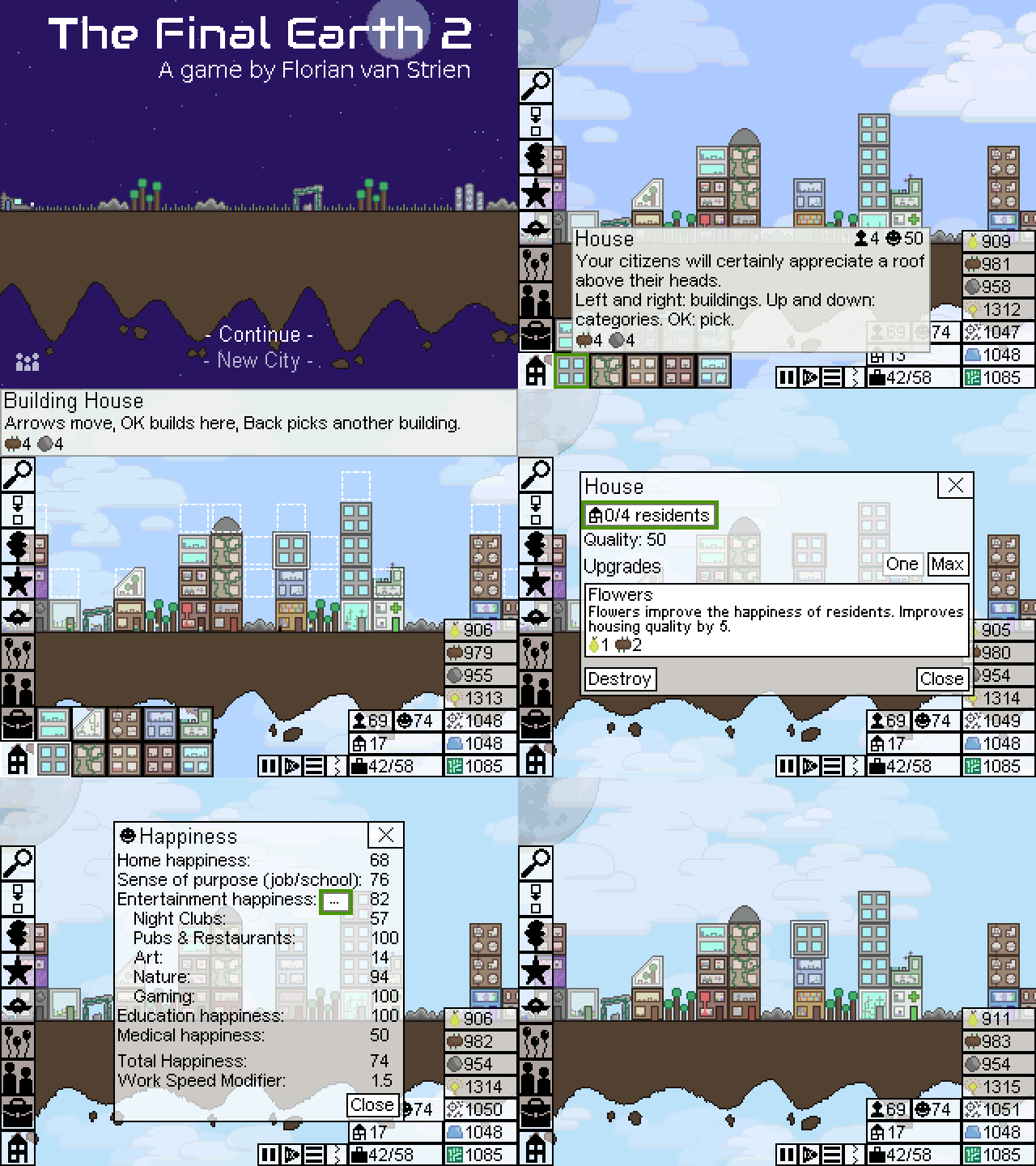 The Final Earth 2 comes as its own app, `FinalEarth2.nwa`: it is too big to share the calculator with NumPlay.
| Key | What it does |
| --- | --- |
| **Arrows** | Move the cursor, or the focus in menus and windows |
| **shift** + **arrows** | Move the view faster |
| **OK** | Open what is under the cursor, choose, build here |
| **Back** | Close, stop building, open the game menu |
| **toolbox** | Open or close the build menu |
| **var** | Go to the buttons and materials at the bottom right, and back |
| **alpha** | Pause |
| **+** and **-** | Zoom in and out |
| **⌫** | Destroy the building under the cursor |
| **Home** | Save and quit |
Choose a scenario or a free play map. Build woodcutters and stone mines for materials, farms for food and houses for your citizens; buildings stack on top of each other. In the build menu, left and right go through the buildings, up and down change the category, and **OK** picks one; then **OK** builds where the cursor is, and **Back** goes back to the menu. Each goal of a scenario tells you what to do next, and **?** shows it again. On the speed button, **OK** switches between normal and double speed, and **shift** with **OK** goes through all five speeds. Home saves and quits, and the title then offers Continue. Your city is also copied into `finalearth2_saves.py`, so installing the app again doesn't erase it.
The Final Earth 2 comes as its own app, `FinalEarth2.nwa`: it is too big to share the calculator with NumPlay.
| Key | What it does |
| --- | --- |
| **Arrows** | Move the cursor, or the focus in menus and windows |
| **shift** + **arrows** | Move the view faster |
| **OK** | Open what is under the cursor, choose, build here |
| **Back** | Close, stop building, open the game menu |
| **toolbox** | Open or close the build menu |
| **var** | Go to the buttons and materials at the bottom right, and back |
| **alpha** | Pause |
| **+** and **-** | Zoom in and out |
| **⌫** | Destroy the building under the cursor |
| **Home** | Save and quit |
Choose a scenario or a free play map. Build woodcutters and stone mines for materials, farms for food and houses for your citizens; buildings stack on top of each other. In the build menu, left and right go through the buildings, up and down change the category, and **OK** picks one; then **OK** builds where the cursor is, and **Back** goes back to the menu. Each goal of a scenario tells you what to do next, and **?** shows it again. On the speed button, **OK** switches between normal and double speed, and **shift** with **OK** goes through all five speeds. Home saves and quits, and the title then offers Continue. Your city is also copied into `finalearth2_saves.py`, so installing the app again doesn't erase it.
## NumDrive
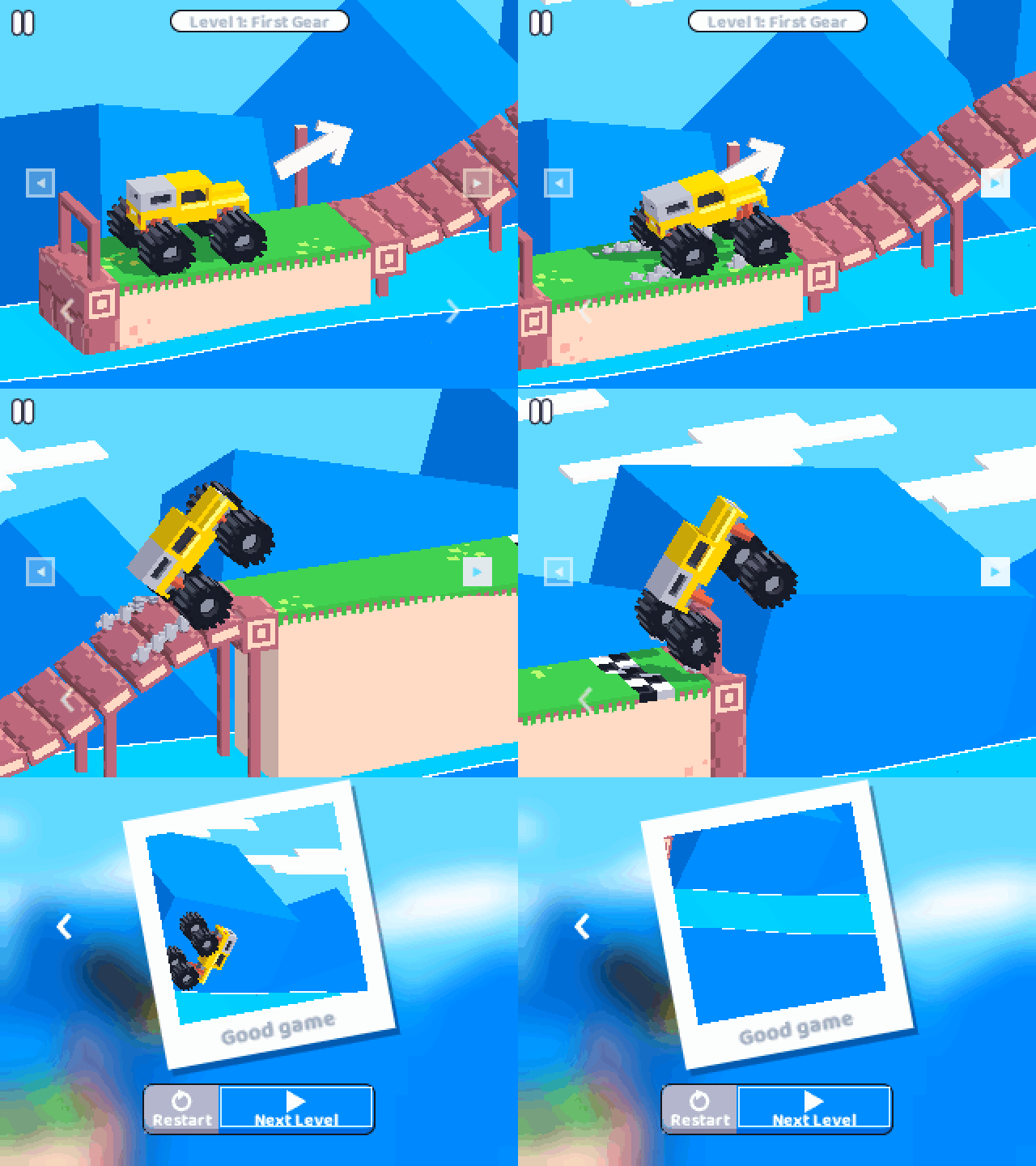 | Key | What it does |
| --- | --- |
| **Right** | Drive forward |
| **Left** | Brake and reverse |
| **OK** or **Back** | Pause. **Back** again resumes |
| **Levels** on the pause card | Pick any level |
Don't floor it the whole way: too much gas flips the car.
| Key | What it does |
| --- | --- |
| **Right** | Drive forward |
| **Left** | Brake and reverse |
| **OK** or **Back** | Pause. **Back** again resumes |
| **Levels** on the pause card | Pick any level |
Don't floor it the whole way: too much gas flips the car.
## Balatro
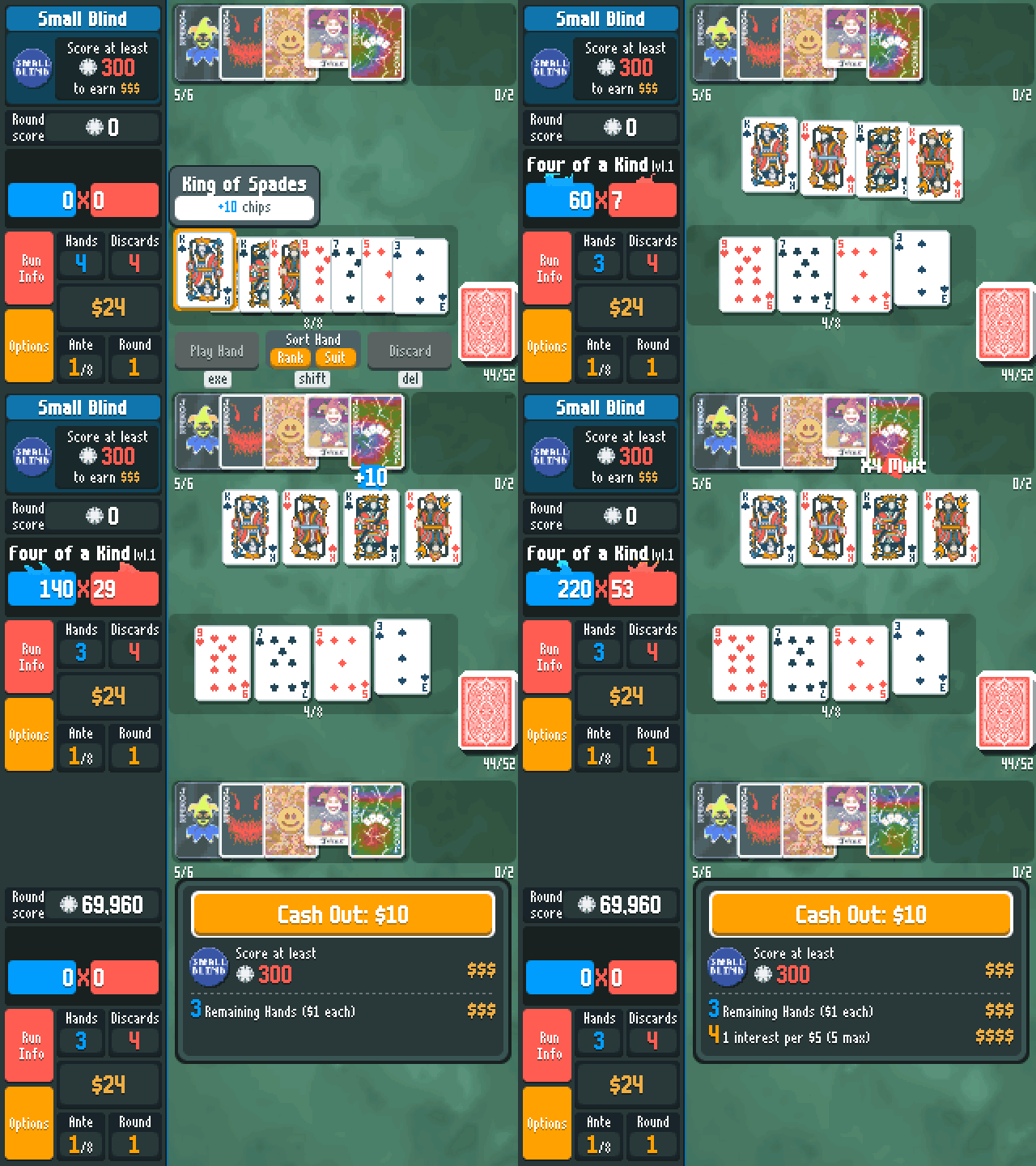 | Key | What it does |
| --- | --- |
| **Arrows** | Move between cards, Jokers and buttons |
| **OK** | Pick a card, or open a Joker or shop item (Buy, Sell, Use) |
| **EXE** | Play hand |
| **⌫** | Discard |
| **Shift** | Sort by rank or suit |
| **Alpha + Left / Right** | Move a Joker or a card |
| **Toolbox** / **Var** | Run info / your deck |
| **Back** | Options |
Hold **OK** or **EXE** to speed up the scoring.
| Key | What it does |
| --- | --- |
| **Arrows** | Move between cards, Jokers and buttons |
| **OK** | Pick a card, or open a Joker or shop item (Buy, Sell, Use) |
| **EXE** | Play hand |
| **⌫** | Discard |
| **Shift** | Sort by rank or suit |
| **Alpha + Left / Right** | Move a Joker or a card |
| **Toolbox** / **Var** | Run info / your deck |
| **Back** | Options |
Hold **OK** or **EXE** to speed up the scoring.
## Buckshot Roulette
 | Key | What it does |
| --- | --- |
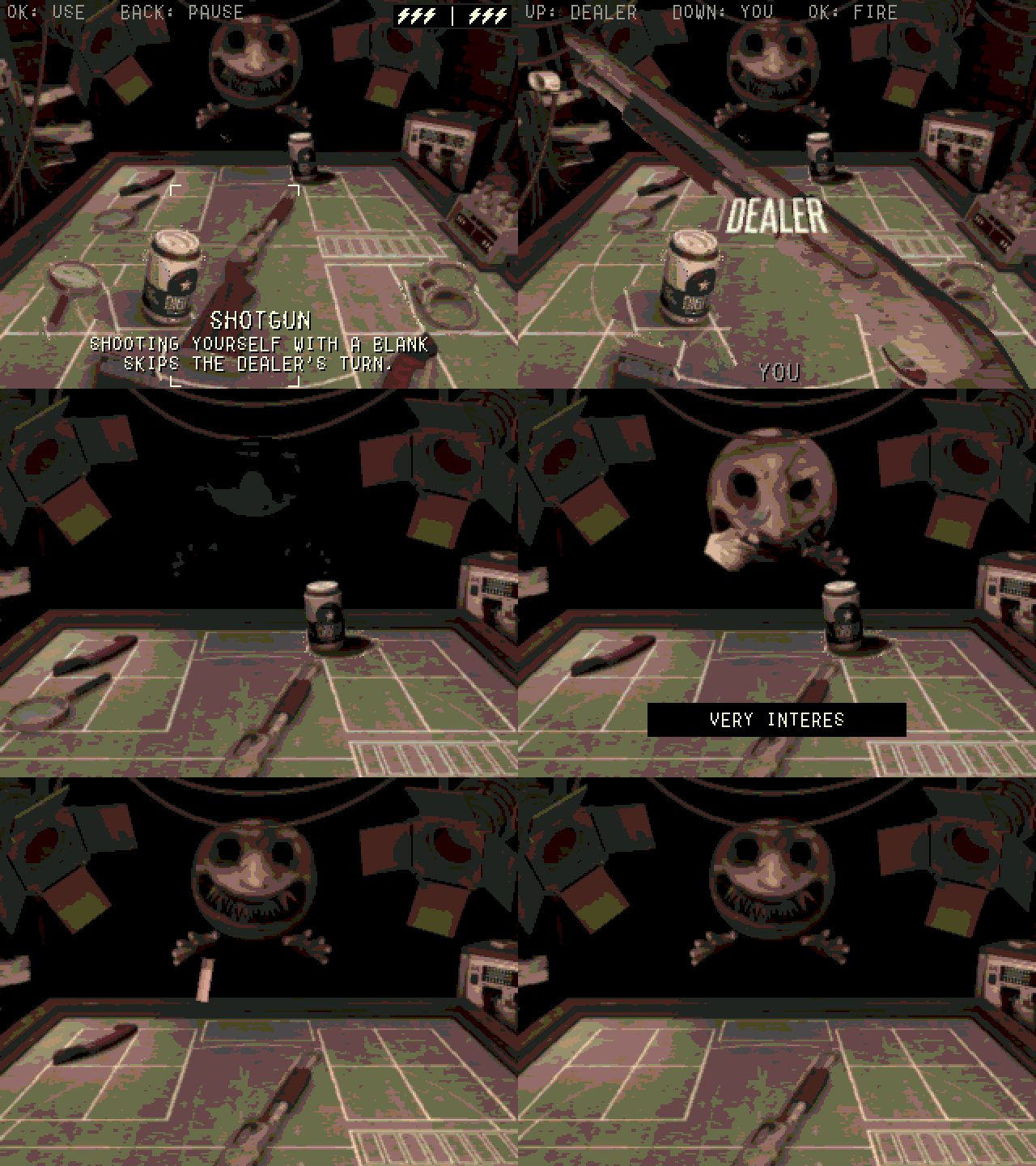
| **Arrows** | Move between your items and the shotgun. Go up to read the Dealer's items |
| **OK** or **EXE** | Use an item, pick up the shotgun, fire |
| **Up / Down** | With the shotgun: aim at the Dealer / at yourself |
| **Letter keys** | Sign the waiver (EXE signs) |
| **Back** | Pause |
Shooting yourself with a blank keeps your turn.
| Key | What it does |
| --- | --- |
| **Arrows** | Move between your items and the shotgun. Go up to read the Dealer's items |
| **OK** or **EXE** | Use an item, pick up the shotgun, fire |
| **Up / Down** | With the shotgun: aim at the Dealer / at yourself |
| **Letter keys** | Sign the waiver (EXE signs) |
| **Back** | Pause |
Shooting yourself with a blank keeps your turn.
## Block Blast
 | Key | What it does |
| --- | --- |
| **1, 2, 3** | Take that block |
| **Arrows** | Move it on the board |
| **OK** | Place it |
| **Back** | Menu (with How to play and Quit) |
Fill a row or a column to clear it; blocks never turn. The lines a block would fill light up in its colour before you place it. Clear again within three blocks for a combo, which multiplies the points. The game ends when none of your three blocks fits; your game and best score are saved.
| Key | What it does |
| --- | --- |
| **1, 2, 3** | Take that block |
| **Arrows** | Move it on the board |
| **OK** | Place it |
| **Back** | Menu (with How to play and Quit) |
Fill a row or a column to clear it; blocks never turn. The lines a block would fill light up in its colour before you place it. Clear again within three blocks for a combo, which multiplies the points. The game ends when none of your three blocks fits; your game and best score are saved.
## Champion Island
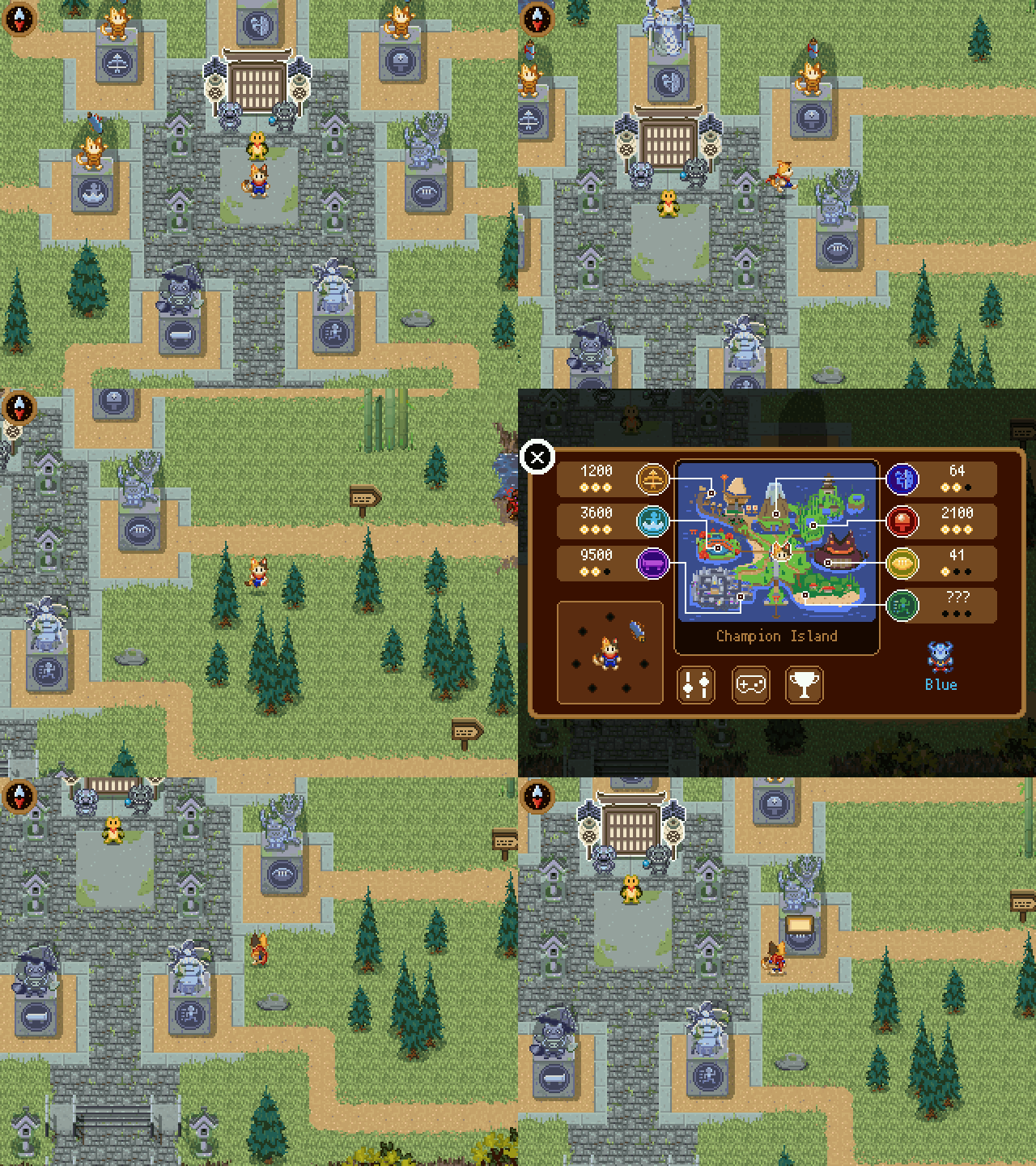 Champion Island comes as its own app, `ChampionIsland.nwa`: it is too big to share the calculator with NumPlay.
| Key | What it does |
| --- | --- |
| **Arrows** (or 4, 6, 8, 2) | Walk, and play |
| **OK**, **EXE** or 5 | Talk, go through doors, and each sport's action |
| **Back** | On the island: the map. In a sport: pause |
| **Home** | Save and quit |
| Sport | Arrows | OK |
| --- | --- | --- |
| Table Tennis | Move to the ball | Power shot |
| Skateboarding | Move and do tricks | Jump and do tricks |
| Archery | Move | Shoot |
| Rugby | Move | Pass |
| Artistic Swimming | Hit the arrow beats | |
| Marathon | Move | Dodge |
| Climbing | Move | Jump |
Every sport shows its rules and keys before it starts. Your progress is also copied into `champion_saves.py`, so installing the app again doesn't erase it.
Champion Island comes as its own app, `ChampionIsland.nwa`: it is too big to share the calculator with NumPlay.
| Key | What it does |
| --- | --- |
| **Arrows** (or 4, 6, 8, 2) | Walk, and play |
| **OK**, **EXE** or 5 | Talk, go through doors, and each sport's action |
| **Back** | On the island: the map. In a sport: pause |
| **Home** | Save and quit |
| Sport | Arrows | OK |
| --- | --- | --- |
| Table Tennis | Move to the ball | Power shot |
| Skateboarding | Move and do tricks | Jump and do tricks |
| Archery | Move | Shoot |
| Rugby | Move | Pass |
| Artistic Swimming | Hit the arrow beats | |
| Marathon | Move | Dodge |
| Climbing | Move | Jump |
Every sport shows its rules and keys before it starts. Your progress is also copied into `champion_saves.py`, so installing the app again doesn't erase it.
## Portal Returns
 | Key | What it does |
| --- | --- |
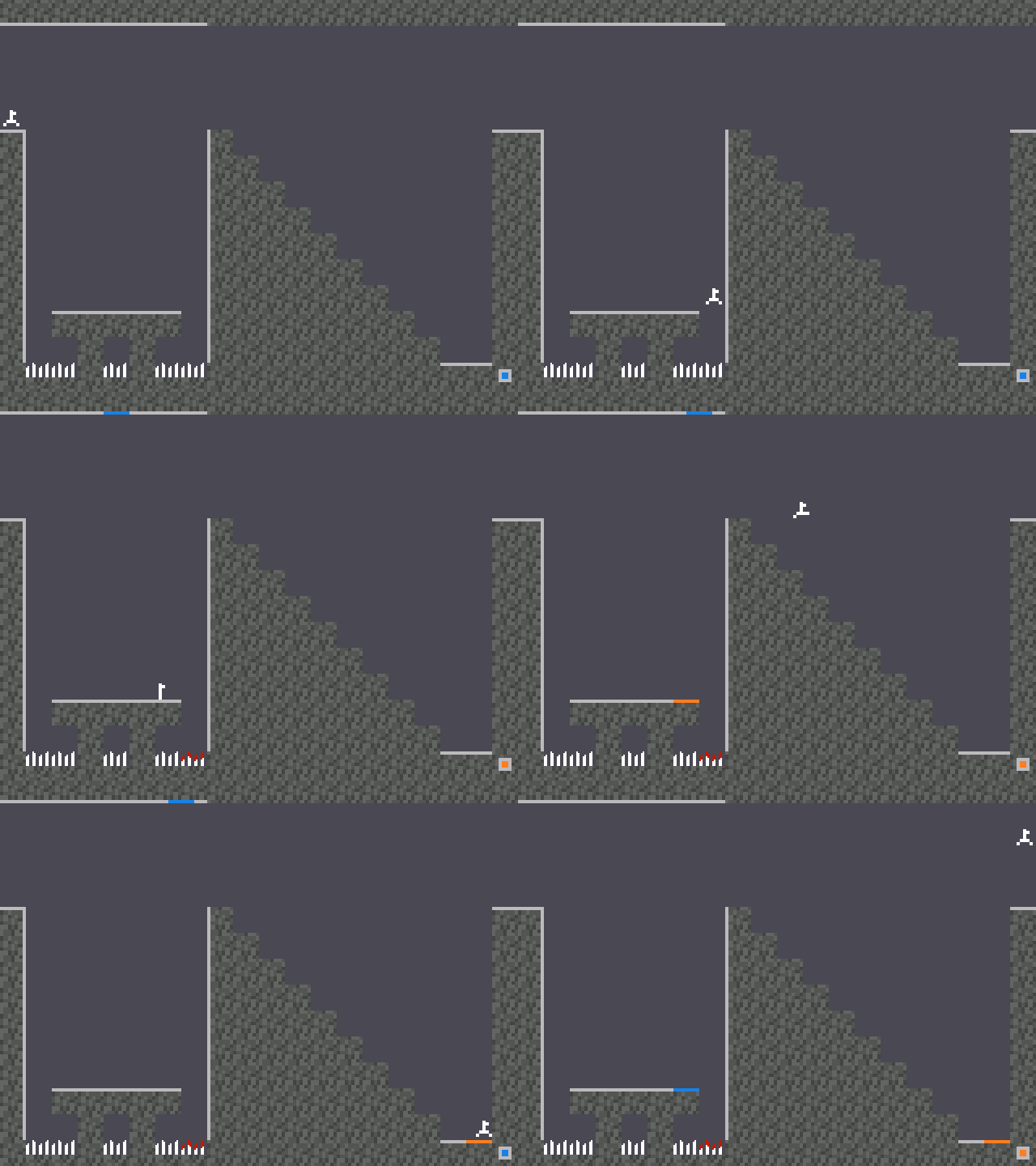
| **Left / Right** | Run |
| **Up** | Jump |
| **1 to 9** (not 5) | Fire a portal that way: 7 is up left, 3 is down right |
| **5** | Switch the color of the next portal |
| **OK** or **EXE** | Pick up or drop a cube, continue |
| **Back** | Pause |
**Help** on the title screen shows every key and every test element.
| Key | What it does |
| --- | --- |
| **Left / Right** | Run |
| **Up** | Jump |
| **1 to 9** (not 5) | Fire a portal that way: 7 is up left, 3 is down right |
| **5** | Switch the color of the next portal |
| **OK** or **EXE** | Pick up or drop a cube, continue |
| **Back** | Pause |
**Help** on the title screen shows every key and every test element.
## Tetris
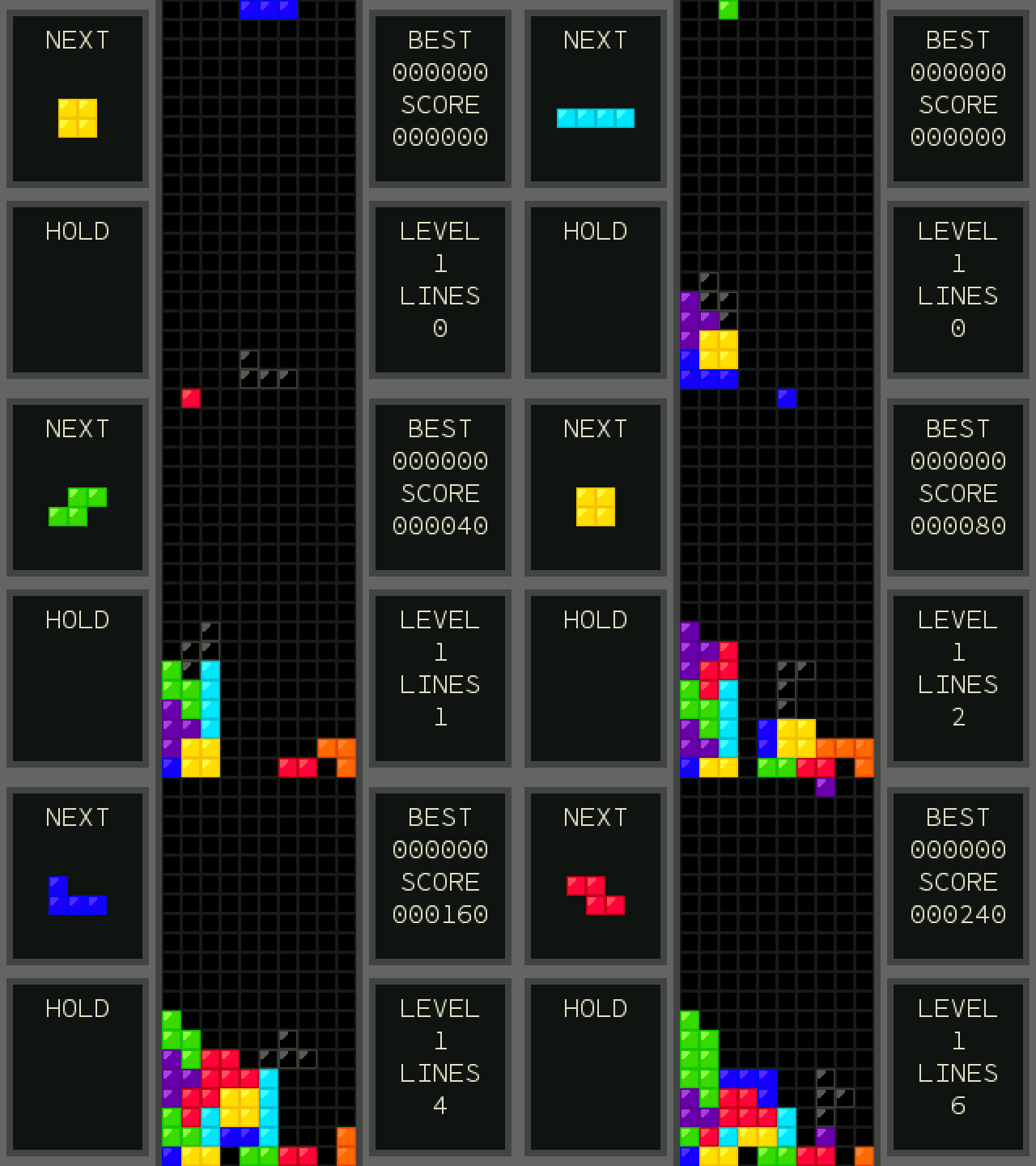 | Key | What it does |
| --- | --- |
| **Left / Right** (or 4 / 6) | Move |
| **Down** (or 2) | Soft drop |
| **Up** (or 8) | Hard drop |
| **OK** | Rotate |
| **Toolbox** | Rotate the other way |
| **⌫** | Hold the piece |
| **Back** | Pause (then Quit game) |
| Key | What it does |
| --- | --- |
| **Left / Right** (or 4 / 6) | Move |
| **Down** (or 2) | Soft drop |
| **Up** (or 8) | Hard drop |
| **OK** | Rotate |
| **Toolbox** | Rotate the other way |
| **⌫** | Hold the piece |
| **Back** | Pause (then Quit game) |
## Chess
 | Key | What it does |
| --- | --- |
| **Arrows** | Move the cursor |
| **OK** or **EXE** | Pick a piece, then its move |
| **Back** | Deselect, pause menu (with Quit game), or back |
| **⌫** | Undo |
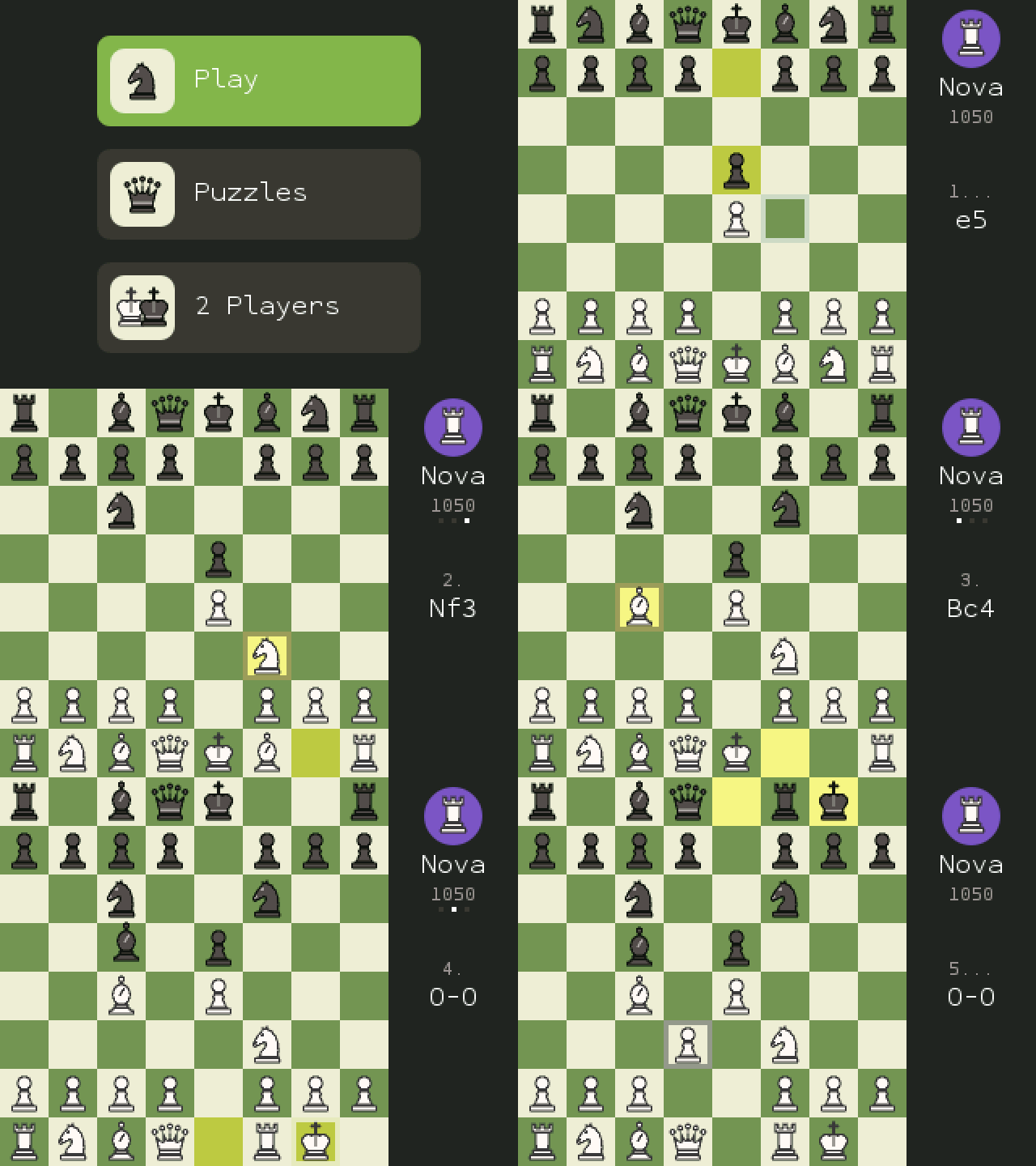
12 bots from 150 to 2100 Elo, endless puzzles, and a two-player clock.
| Key | What it does |
| --- | --- |
| **Arrows** | Move the cursor |
| **OK** or **EXE** | Pick a piece, then its move |
| **Back** | Deselect, pause menu (with Quit game), or back |
| **⌫** | Undo |
12 bots from 150 to 2100 Elo, endless puzzles, and a two-player clock.
## Flappy Bird
 | Key | What it does |
| --- | --- |
| **OK**, **Up** or **EXE** | Flap |
| **Back** | Pause menu (with Quit game) |
**Classic** plays like the original. **Custom** brings All the Apps' extras from Settings: speed, pipe density, gap size, moving pipes, jump strength, and events like wind gusts, gravity changes and narrow gaps. Medals at 10, 20, 30 and 40.
| Key | What it does |
| --- | --- |
| **OK**, **Up** or **EXE** | Flap |
| **Back** | Pause menu (with Quit game) |
**Classic** plays like the original. **Custom** brings All the Apps' extras from Settings: speed, pipe density, gap size, moving pipes, jump strength, and events like wind gusts, gravity changes and narrow gaps. Medals at 10, 20, 30 and 40.
## Pac-Man
 | Key | What it does |
| --- | --- |
| **Arrows** | Steer (a turn pressed early is taken at the next gap) |
| **Back** | Pause menu (with Quit game) |
The arcade maze and its four ghosts, each with its own way of hunting you. Leave in the middle of a game and **Continue** it later. Options: game speed, lives, input buffer, starting level.
| Key | What it does |
| --- | --- |
| **Arrows** | Steer (a turn pressed early is taken at the next gap) |
| **Back** | Pause menu (with Quit game) |
The arcade maze and its four ghosts, each with its own way of hunting you. Leave in the middle of a game and **Continue** it later. Options: game speed, lives, input buffer, starting level.
## Snake
 | Key | What it does |
| --- | --- |
| **Arrows** | Turn (two turns can wait in line) |
| **Left / Right** (Settings) | Change a setting |
| **Back** | Pause menu (with Quit game) |
Google's Snake, with its settings: 6 fruits, 12 modes (Classic, Wall, Portal, Cheese, Borderless, Twin, Winged, Yin Yang, Statue, Light, Magnet, Peaceful), 1, 3 or 5 fruits at a time, 3 speeds, 3 board sizes, 8 snake colors and 4 themes. **Shuffle** picks them all at random.
| Key | What it does |
| --- | --- |
| **Arrows** | Turn (two turns can wait in line) |
| **Left / Right** (Settings) | Change a setting |
| **Back** | Pause menu (with Quit game) |
Google's Snake, with its settings: 6 fruits, 12 modes (Classic, Wall, Portal, Cheese, Borderless, Twin, Winged, Yin Yang, Statue, Light, Magnet, Peaceful), 1, 3 or 5 fruits at a time, 3 speeds, 3 board sizes, 8 snake colors and 4 themes. **Shuffle** picks them all at random.
## Connect Four
 | Key | What it does |
| --- | --- |
| **Left / Right** | Choose a column |
| **OK**, **Down** or **1-8** | Drop a disc |
| **⌫** | Undo (against the computer) |
| **Back** | Pause menu (with Quit game) |
Against a friend, or the computer at three strengths, or three players at once. Wins are counted across rounds.
| Key | What it does |
| --- | --- |
| **Left / Right** | Choose a column |
| **OK**, **Down** or **1-8** | Drop a disc |
| **⌫** | Undo (against the computer) |
| **Back** | Pause menu (with Quit game) |
Against a friend, or the computer at three strengths, or three players at once. Wins are counted across rounds.
## Solitaire
 | Key | What it does |
| --- | --- |
| **Arrows** | Move (Up / Down on a column picks how many cards; the side columns hold the deck, Undo, New and the foundations) |
| **OK** | Pick up, put down; twice sends a card home |
| **EXE** | Draw |
| **Toolbox** | Send every card you can home |
| **⌫** | Undo |
| **Shift** | Hint |
| **Back** | Put cards back, or the pause menu |
Klondike the way Google Solitaire looks and plays: **Easy** draws 1 card, **Hard** draws 3. Options add Standard or Vegas scoring, a timed game and four card backs, and the cards bounce when you win. Your game is kept for next time.
| Key | What it does |
| --- | --- |
| **Arrows** | Move (Up / Down on a column picks how many cards; the side columns hold the deck, Undo, New and the foundations) |
| **OK** | Pick up, put down; twice sends a card home |
| **EXE** | Draw |
| **Toolbox** | Send every card you can home |
| **⌫** | Undo |
| **Shift** | Hint |
| **Back** | Put cards back, or the pause menu |
Klondike the way Google Solitaire looks and plays: **Easy** draws 1 card, **Hard** draws 3. Options add Standard or Vegas scoring, a timed game and four card backs, and the cards bounce when you win. Your game is kept for next time.
## 2048
 | Key | What it does |
| --- | --- |
| **Arrows** | Slide the tiles |
| **⌫** | Undo one move |
| **Left / Right** (title) | Board size, 3x3 to 6x6 |
| **Back** | Pause menu (with Quit game) |
Merge equal tiles to reach 2048, then keep going. Each board size keeps its game and best score.
| Key | What it does |
| --- | --- |
| **Arrows** | Slide the tiles |
| **⌫** | Undo one move |
| **Left / Right** (title) | Board size, 3x3 to 6x6 |
| **Back** | Pause menu (with Quit game) |
Merge equal tiles to reach 2048, then keep going. Each board size keeps its game and best score.
## Minesweeper
 | Key | What it does |
| --- | --- |
| **Arrows** | Move |
| **OK** | Open a square; on a number with all its flags, open around it |
| **Shift**, **⌫** or **0** | Flag |
| **Back** | Pause menu (with Help and Quit game) |
Beginner, Intermediate, Expert or your own size and number of mines. The first square is always safe. Options: **No guessing** (only boards you can solve by logic), ? marks, whether the first square opens an area, and whether the cursor wraps around the edges.
| Key | What it does |
| --- | --- |
| **Arrows** | Move |
| **OK** | Open a square; on a number with all its flags, open around it |
| **Shift**, **⌫** or **0** | Flag |
| **Back** | Pause menu (with Help and Quit game) |
Beginner, Intermediate, Expert or your own size and number of mines. The first square is always safe. Options: **No guessing** (only boards you can solve by logic), ? marks, whether the first square opens an area, and whether the cursor wraps around the edges.
## Block Breaker
 | Key | What it does |
| --- | --- |
| **Left / Right** | Move the paddle (hold to speed up) |
| **OK** or **Up** | Launch the ball |
| **Back** | Pause menu (with Quit game) |
Google's brick breaker: seven bricks across in blue, red, yellow and green, wall after wall, each a little faster. Bricks with a sign hold a power-up: **TNT** blows up its neighbors, **+** gives a ball, **O** splits the ball in three, **<->** widens the paddle, a **flame** makes a fireball and **beams** fire lasers. Settings: speed and screen shake.
| Key | What it does |
| --- | --- |
| **Left / Right** | Move the paddle (hold to speed up) |
| **OK** or **Up** | Launch the ball |
| **Back** | Pause menu (with Quit game) |
Google's brick breaker: seven bricks across in blue, red, yellow and green, wall after wall, each a little faster. Bricks with a sign hold a power-up: **TNT** blows up its neighbors, **+** gives a ball, **O** splits the ball in three, **<->** widens the paddle, a **flame** makes a fireball and **beams** fire lasers. Settings: speed and screen shake.
## NumVisuals
 | Key | What it does |
| --- | --- |
| **Left / Right** | Pick a background, then an add-on |
| **OK** | Next step: backgrounds, add-ons, then full screen |
| **Back** | One step back |
| **OK** (clock, text) | Change the time or the words |
| **OK / ⌫** (stopwatch, timer) | Start or stop / reset |
| **OK, Up, +** / **Down, -** (counter) | Count up / down. **⌫** goes back to 0 |
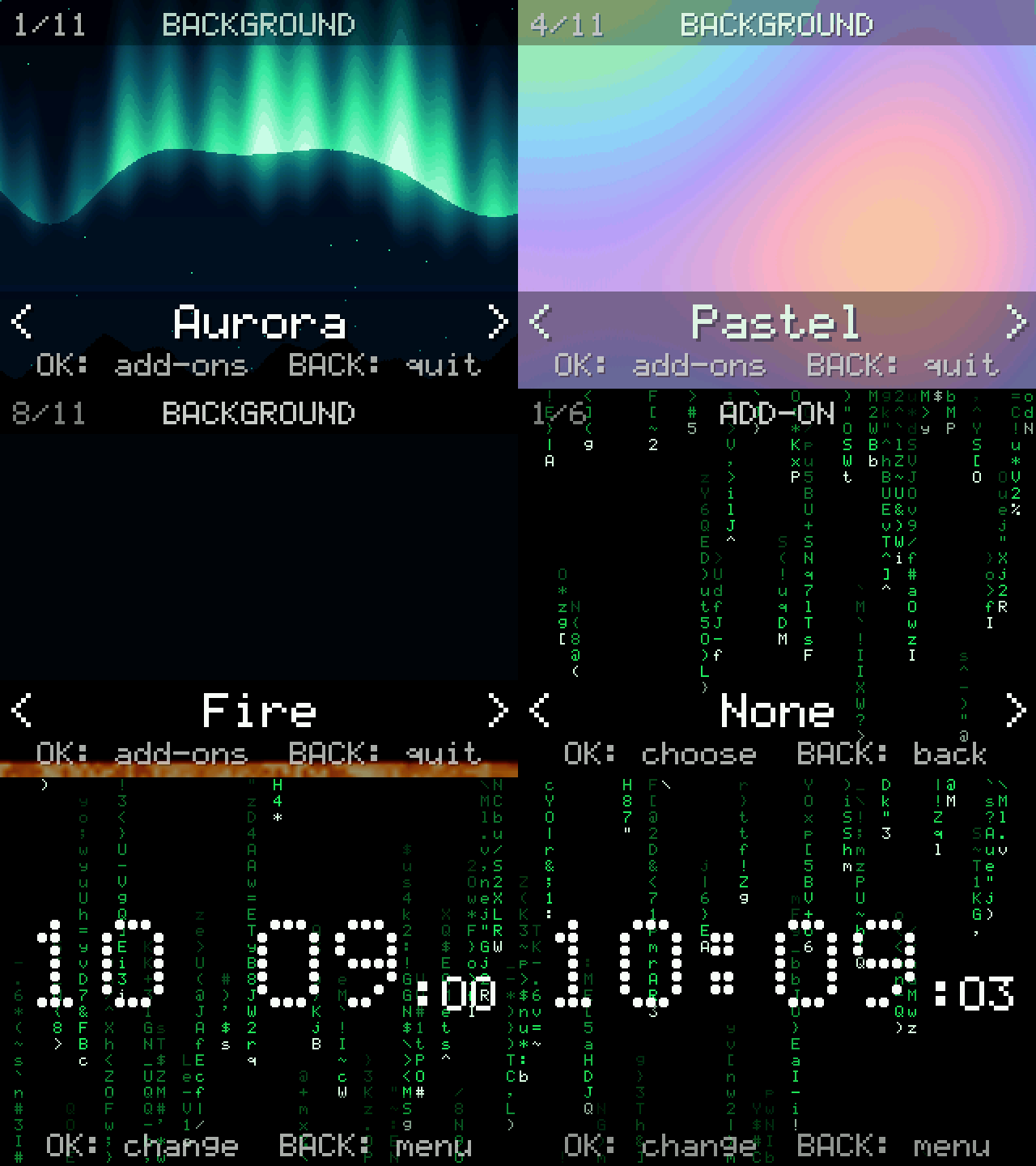
11 backgrounds and 5 add-ons: a clock, a stopwatch, a timer, a counter and your own text (press **Alpha** for letters). Everything is kept for next time.
| Key | What it does |
| --- | --- |
| **Left / Right** | Pick a background, then an add-on |
| **OK** | Next step: backgrounds, add-ons, then full screen |
| **Back** | One step back |
| **OK** (clock, text) | Change the time or the words |
| **OK / ⌫** (stopwatch, timer) | Start or stop / reset |
| **OK, Up, +** / **Down, -** (counter) | Count up / down. **⌫** goes back to 0 |
11 backgrounds and 5 add-ons: a clock, a stopwatch, a timer, a counter and your own text (press **Alpha** for letters). Everything is kept for next time.